ThisDownload from GitHub: Download Clash for Windows (Chinese)
Or try directly from this site: Download Clash for Windows (Chinese)uide explains how to install and configure the Clash for Windows application.
1. Download and Installation
Download from GitHub: Download Clash for Windows (Chinese) Or try directly from this site: Download Clash for Windows (Chinese)
If the above methods are unavailable, please visit the Clash Chinese official site.
2. Configuration and Activation
First, right-click the Clash icon → Run as administrator, then go to Home → Service Mode → Manage → Install to install the system service. Restart the app afterward. 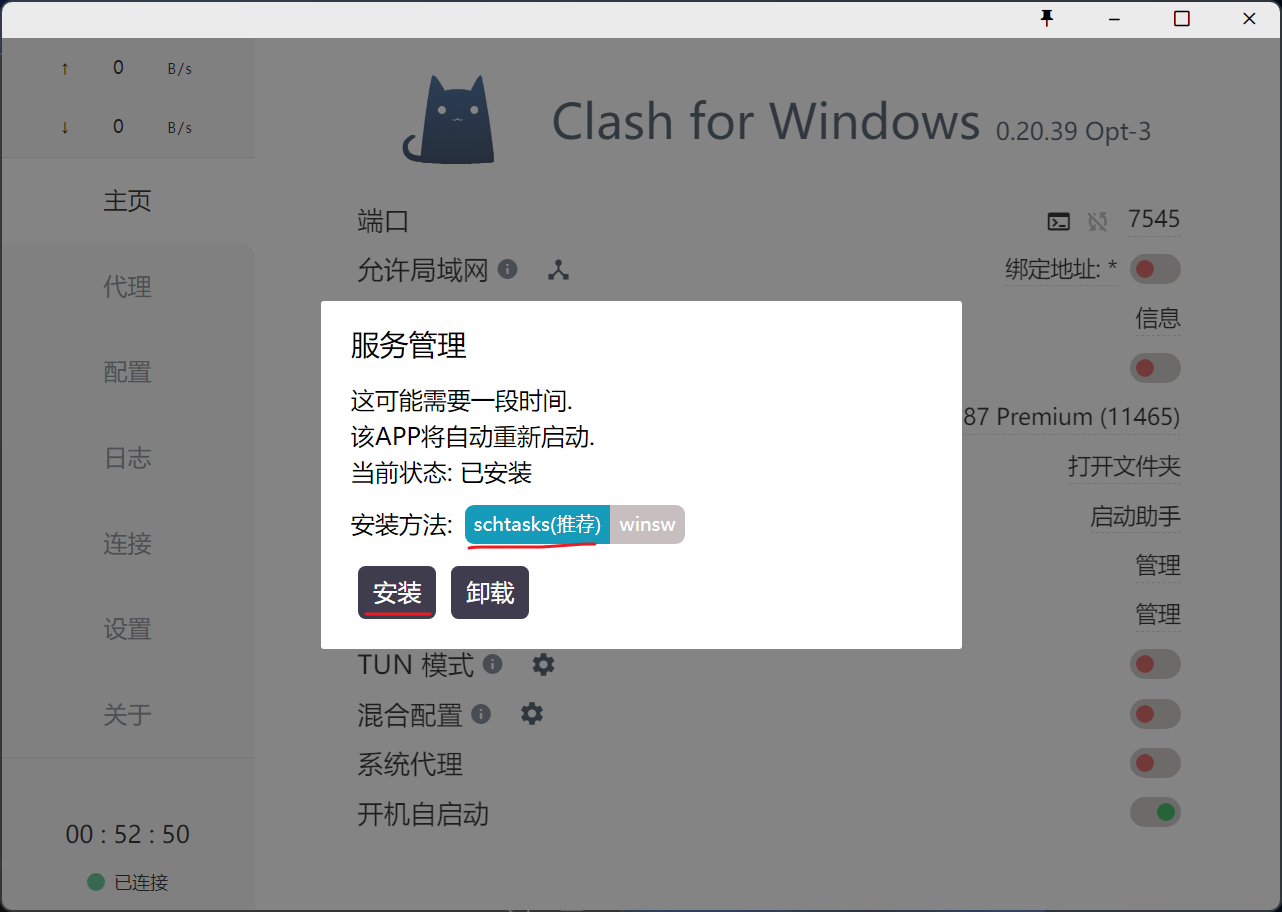 Go to the Profiles tab, locate the default
 config.yaml, click <> to open the built-in editor, or manually find it at C:\Users\[YourUserName]\.config\clash\config.yaml.  In
In config.yaml, the circled section in the screenshot should NOT exist. If present, delete it. Open the txt file from Jungle0128 containing your dedicated settings. Copy the block starting with proxies into the position shown in config.yaml. 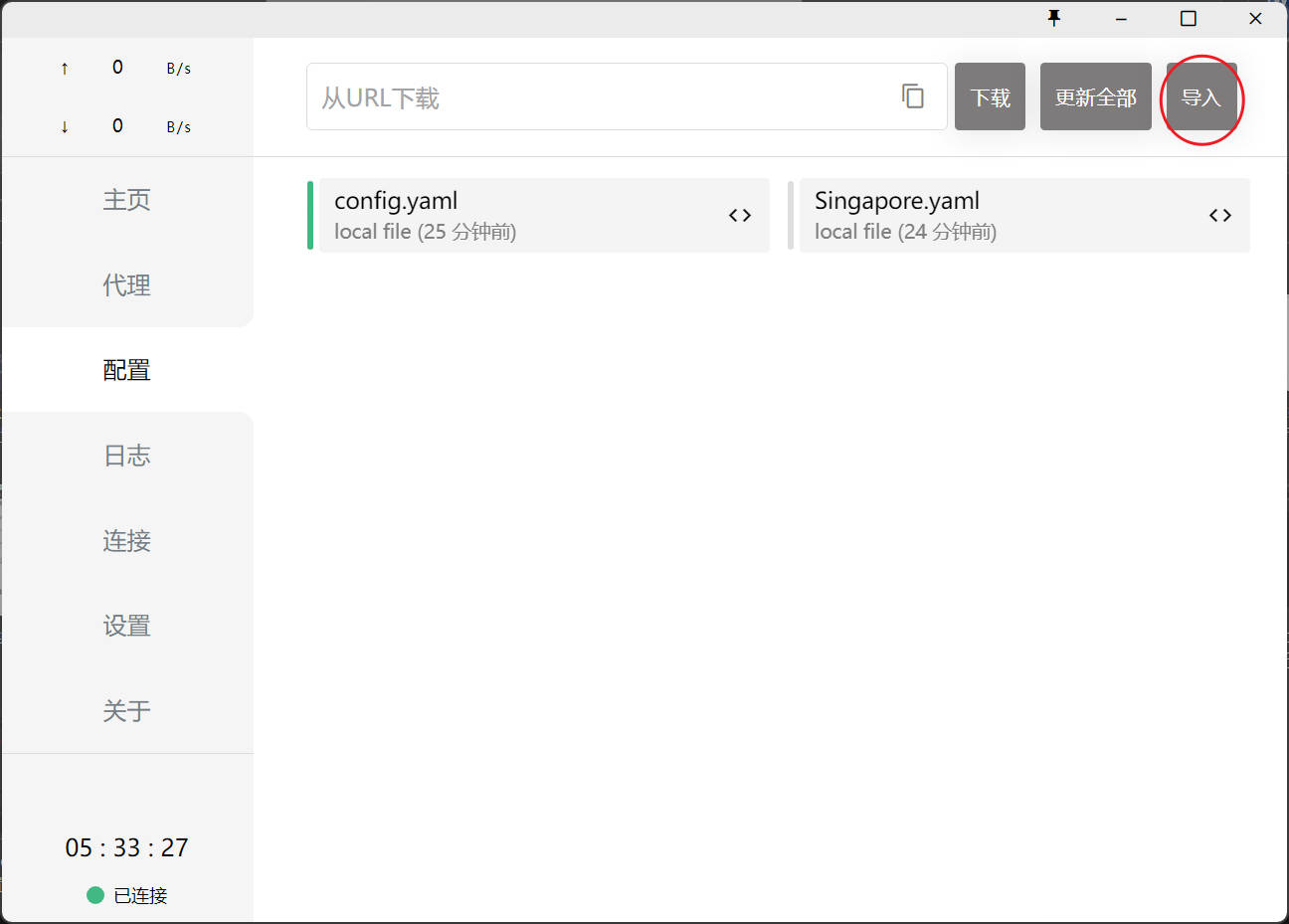 Save and close
 config.yaml.
3. Connection and Disconnection
Back in the main window, open the Proxy tab. Under Global, select v2ray-ws-tls. Click Test; latency should appear. The screenshot shows 1653 ms from Finland; in China it’s typically 30–100 ms. 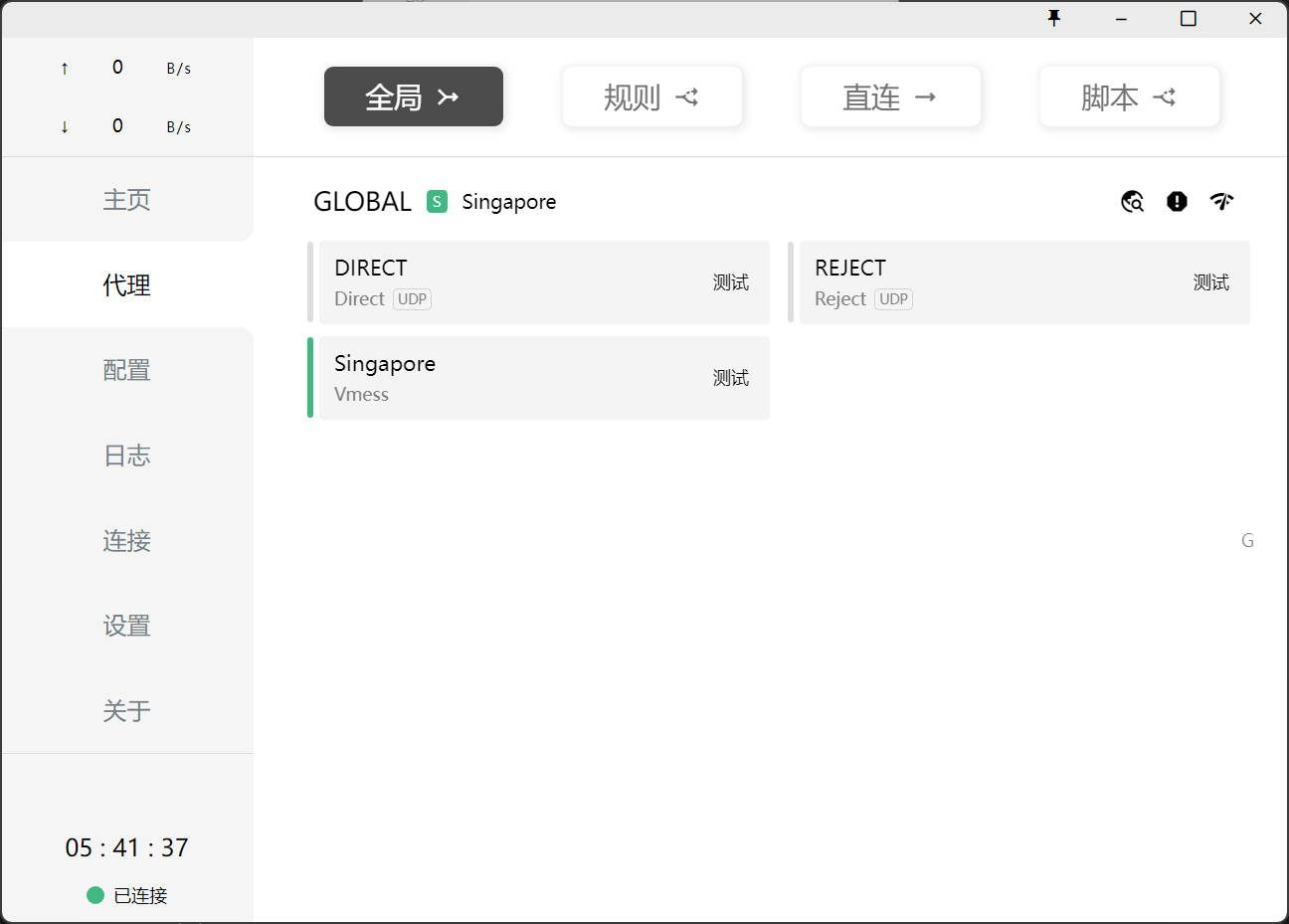
Return to Home.
Turn on all three switches: 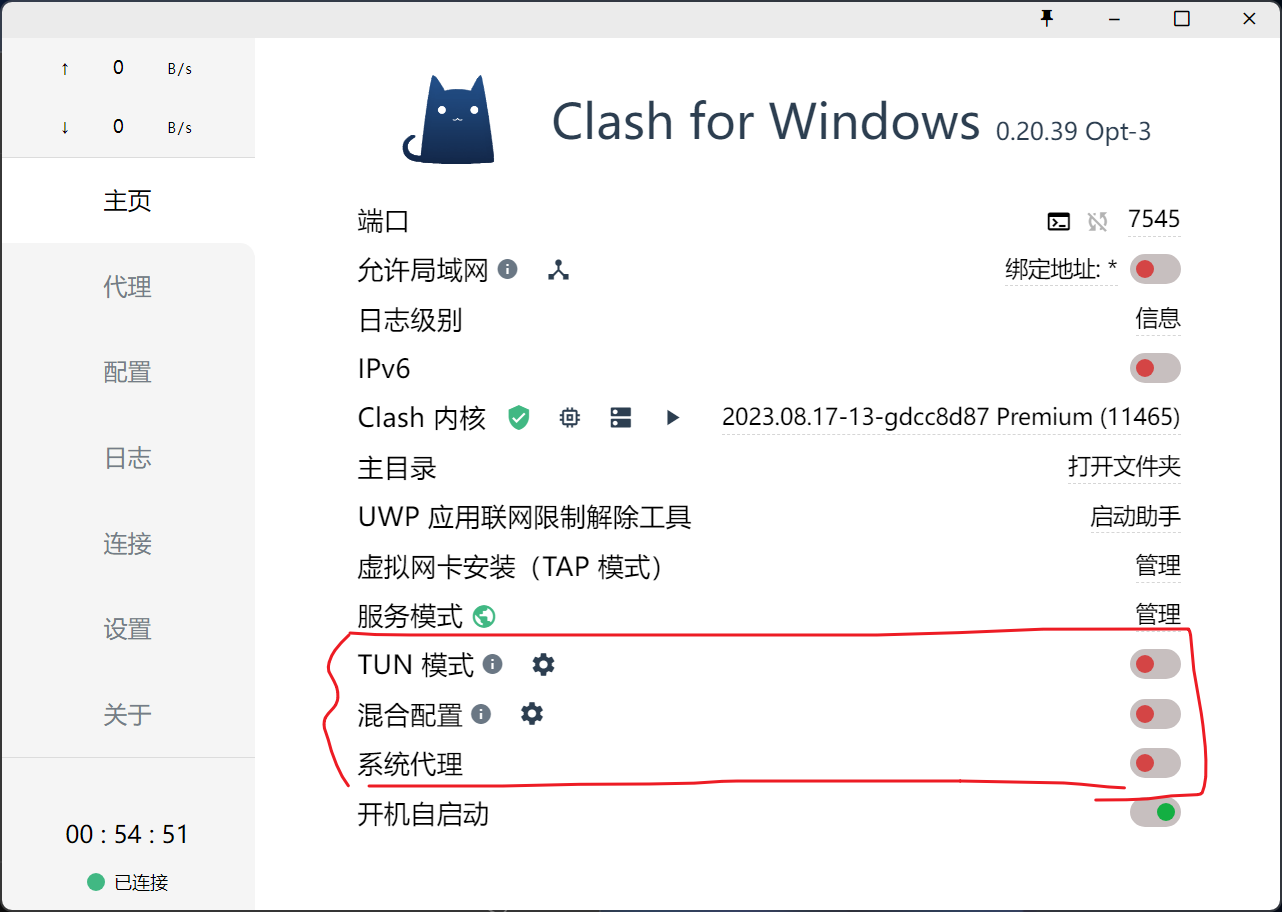
TUN Mode (Outbound Connectivity / TUN Mode)Mix-inSystem Proxy
The VPN is now active. You can verify your IP address just like on Android. To disconnect, simply turn these three switches off.